Data Mover Service
The Data Mover service is based on a software called nodeum. The purpose of the Data Mover is to smoothly transfer data between storage endpoints, which may operate on different principles (e.g. POSIX file systems, object storages, etc.) or serving different clusters.
The Exascale system JUPITER also has a dedicated storage clusters providing EXAFLASH, EXADATA and EXAHOME. This ensures independence and thus higher resilience in case of outages on the existing facility JUST.
We have established a Data Mover service, EXA-JUST-Mover, to support users in moving data between the existing Jülich storage cluster JUST and EXAHOME + EXADATA, which both provide high capacity HDD storage. We provide dedicated nodes
for this purpose that are directly connected to the high speed interconnect.
We provide a command line tool, nd, so users can trigger the Data Mover Service to perform specific actions.
We have also established a second Data Mover Service, EXA-FLASH-Mover, for transfers between the spinning disk-based clusters of ExaSTORE and the faster NVMe based cluster EXAFLASH. This can stage data for large job runs which have demands for
high-bandwidth, responsive storage. Space on ExaFLASH is limited in comparison to EXADATA, which is why the intended workflow involves staging data on and off of EXAFLASH.
It is planned to integrate the EXA-FLASH-Mover service into the job scheduling system of JUPITER. When it is available, users can define jobs with dependencies to create workflows like:
Transfer data to ExaFLASH ⇒ Compute ⇒ Transfer results to ExaSTORE
This document covers how to use the Data Mover command line tool.
Technical Concept
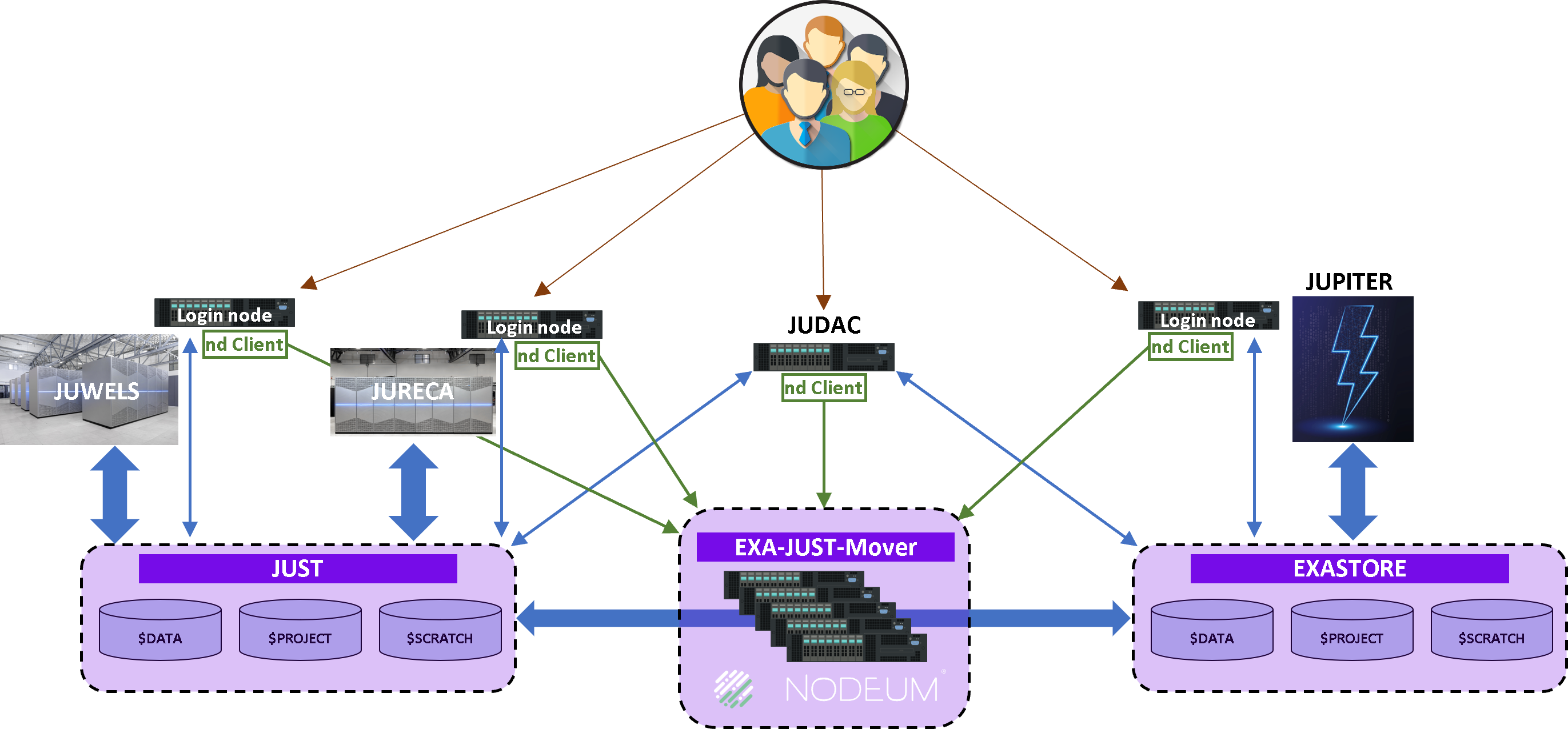
Data Mover Cluster: A dedicated cluster will run the data transfer between the storage pools. There are two available:
EXA-JUST-Moverto connectJUSTandExaSTORE, andEXA-FLASH-Moverto move data betweenExaSTOREand the fast (NVMe based) storageExaFLASH.Authentication: The Data Mover services
EXA-JUST-MoverandEXA-FLASH-Moverrequire an authentication against the Jülich HPC LDAP service. This is automatically achieved when a user logs into either JUDAC or JUPITER via a terminal.Storage Pool: The Data Mover can move data/files between different storage repositories which are POSIX file systems or object store. In the
ndCLI each repository is defined as a “pool”. In the Jülich Data Mover services between JUST/ExaSTORE and ExaFLASH/ExaSTORE are only type “POSIX filesystem” available:Pool
Storage cluster
EXA-JUST-Mover
EXA-FLASH-Mover
Description
largedata2
XCST
X
/p/largedata2data1
JUST
X
/p/data1project1
JUST
X
/p/project1scratch
JUST
X
/p/scratchexa_project1
ExaSTORE
X
X
/e/project1exa_scratch
ExaSTORE
X
X
/e/scratchexa_data1
ExaSTORE
X
X
/e/data1exa_fscratch
ExaFLASH
X
/e/fscratch
A description of the HPC file systems can be found here.
Data Mover Command Line Interface (CLI)
The Nodeum Tool
The nd client is installed on all JUDAC nodes and all HPC login nodes. It is available for all users. It does not require a module to be loaded.
You can use the nd client with a command of the form:
nd [global options] command [command options] [arguments...]
Available commands include:
admin
auth-service   Service that manages users based on Linux users
config         configure the Nodeum Client
copy, cp       create copy task
move, mv       create move task
pool           manage pools
server-config
task
help, h        Shows a list of commands or help for one command
A full list of global options can be seen with the command nd help, but most users should not need to interact with them.
Additional options for specific commands, which can be very useful, are covered below.
Data transfer task
A task is a discrete data transfer triggered by the nd client. The tool saves information about each task
in its database.
Create copy or move data task
To send a copy/move request to the data mover service, use a command of the form:
nd copy [command options] SOURCE [SOURCE...] [DESTINATION]
nd move [command options] SOURCE [SOURCE...] [DESTINATION]
SOURCEis a source file or directory.DESTINATIONis the target filename or target directory.optional arguments for
nd copyandnd move(standard):Option name
Alternative
Description
Value (type)
Default
--help-hShow help
--no-runCreate the task, but don’t run it
false
--name value-n valueName task
string
auto generated
--comment valueAdd an additional comment for task
string
--priority valueSet the priority of the task, between 0 and 9 (0 is highest)
0-9
0
--recursive-RSet whether copy/move is recursive
true
--working-dir--wdDefine the working directory and the path that will be kept at the destination
string
‘.’
--ignore-hiddenTask will ignore hidden files
false
--progressDisplay live progress while running the task
true
--processed-nodesIf
--progressis used, display nodes that have been processed.none, error, all
error
optional arguments (advanced):
Option name
Alternative
Description
Value (type)
Default
--parallel valueDefine the number of movers which will handle the movement
integer
1
--callback typeExecute custom script on finalizing task.
./path/to/file
--trigger-md key=value--md key=valueSet metadata on the trigger.
key=value
--task-md key=valueSet metadata on the task.
key=value
--files-md key=valueSet metadata on the files.
key=value
Note
In our setup the nd client behaves similar to the rsync command by default:
If
SOURCEis a directory, it will perform the transfer recursively, transferring sub-directories and the files contained within them.If
SOURCEdirectory name is given with a trailing slash, only the content of the directory will be copied. Otherwise, the contents of the directory itself will be copied.
Example: copying data
Here is an example using the nd command to copy data:
$>  pwd
/p/project1/myproject

$> nd copy mydir /e/project1/myexaproject/
Started Copying from nod://project1/myproject/mydir to nod://exa_project1/myexaproject/
Processed size ... done! [8.61GB in 3s]
Processed items ... done! [67 in 3s]
          ID: 69c411f65cf21269bc04c655
     Task ID: 69c411f6b4fc8e29c789416f
        Name: From nod://project1/myproject/mydir to nod://exa_project1/myexaproject/
     Comment:
  Created by: johndoe1
       Nodes: 67 / 67
        Size: 8.61 GB / 8.61 GB
      Status: done
Alternatively, one can use the absolute path:
$> nd copy /p/project1/myproject/mydir /e/project1/myexaproject/
or the notation of the nd client, using the pool name instead of the base directory:
$> nd copy nod://project1/myproject/mydir nod://exa_project1/myexaproject/
Task handling
Every copy/move command will trigger an asynchronous job on the Data Mover cluster.
Note
By default the nd (copy|move) command does not return until the data transfer has finished. Pressing [Ctrl]-c will stop output, but the transfer itself will continue.
Useful commands for task handling include:
list your tasks:
nd task listget status of a specific task:
nd task status <TASK ID>pause a running task:
nd task pause <TASK ID>check which files are already transferred:
nd task processed <TASK ID>resume a stopped task:
nd task resume <TASK ID>stop (cancel) a task:
nd task stop <TASK ID>
List all created tasks
This command lists all tasks created by the user in the data mover service. The columns describe:
TASK ID: ID of the TaskTASK NAME: Name of the task defined during the creationCOMMENT: Associated comment.CREATE BY: User who has created the task
$> nd task list

+-------------------+-----------------+---------+------------------+------------+-----------------------+
| TASK ID           | TASK NAME       | COMMENT | CREATED AT       | CREATED BY | LAST EXECUTION STATUS |
+-------------------+-----------------+---------+------------------+------------+-----------------------+
| 696470...7f0a484b | From ... to ... |         | 1/12/26, 7:56 AM | johndoe1   | done                  |
+-------------------+-----------------+---------+------------------+------------+-----------------------+
| 696470...7f0a3dc7 | From ... to ... |         | 1/9/26, 2:06 PM  | johndoe1   | done                  |
+-------------------+-----------------+---------+------------------+------------+-----------------------+
| 696470...45aa6396 | From ... to ... |         | 1/9/26, 10:56 AM | johndoe1   | done                  |
+-------------------+-----------------+---------+------------------+------------+-----------------------+
| NUMBER OF TASK(S) | 3               |         |                  |            |                       |
+-------------------+-----------------+---------+------------------+------------+-----------------------+
List task details
Command to lists start and end time of given task ID:
$> nd task list-exec 6964703a322470c145aa6396

+-------------------+---------------------+---------------------+-------+---------------------+--------+
| ID                | STARTED AT          | FINISHED AT         | NODES | SIZE                | STATUS |
+-------------------+---------------------+---------------------+-------+---------------------+--------+
| 696470...45aa6396 | 09 Jan 26 10:56 CET | 09 Jan 26 10:56 CET | 1 / 1 | 14.21 MB / 14.21 MB | done   |
+-------------------+---------------------+---------------------+-------+---------------------+--------+